Personalizing Products
Introduction
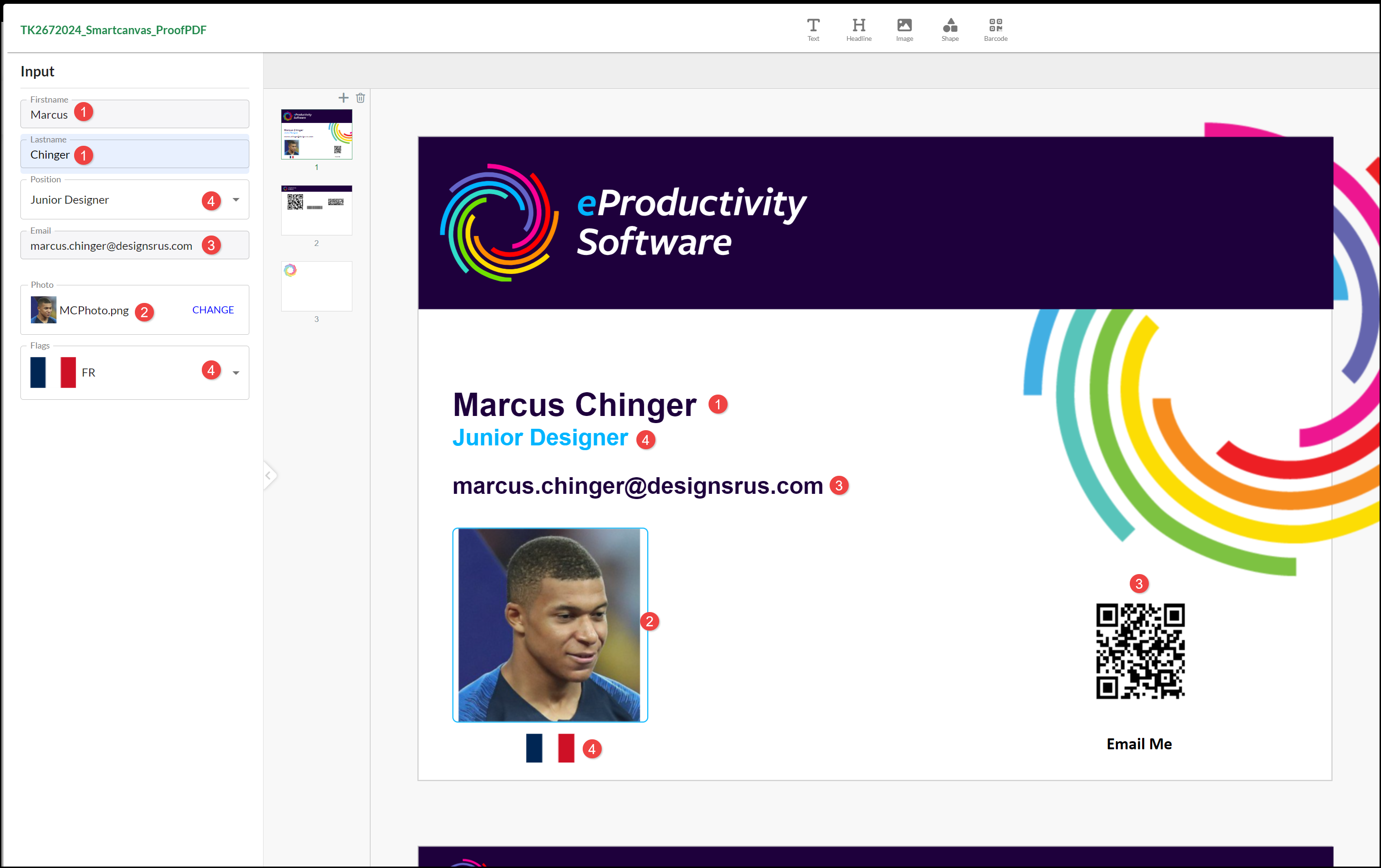
The personalization you can make to a product vary depending on the type of product and design. Some aspects may be fixed, such as elements included as part of the overall design layout. The elements you can personalize are displayed as Input form fields. Changes are displayed in the page/sheet panel as you make them.
Important: Please Login to the store before making personalizations to products, see .
The personalization you can make to a product vary depending on the type of product and design. Some aspects may be fixed, such as elements included as part of the overall design layout. The elements you can personalize are displayed as Input form fields. Changes are displayed in the page/sheet panel as you make them. Any design element may have the option to personalize, depending upon the template. For example:
- Text: Example text is provided to select and overwrite. Changes are displayed as they are made.
- Image: A sample image is provided, select CHANGE to:
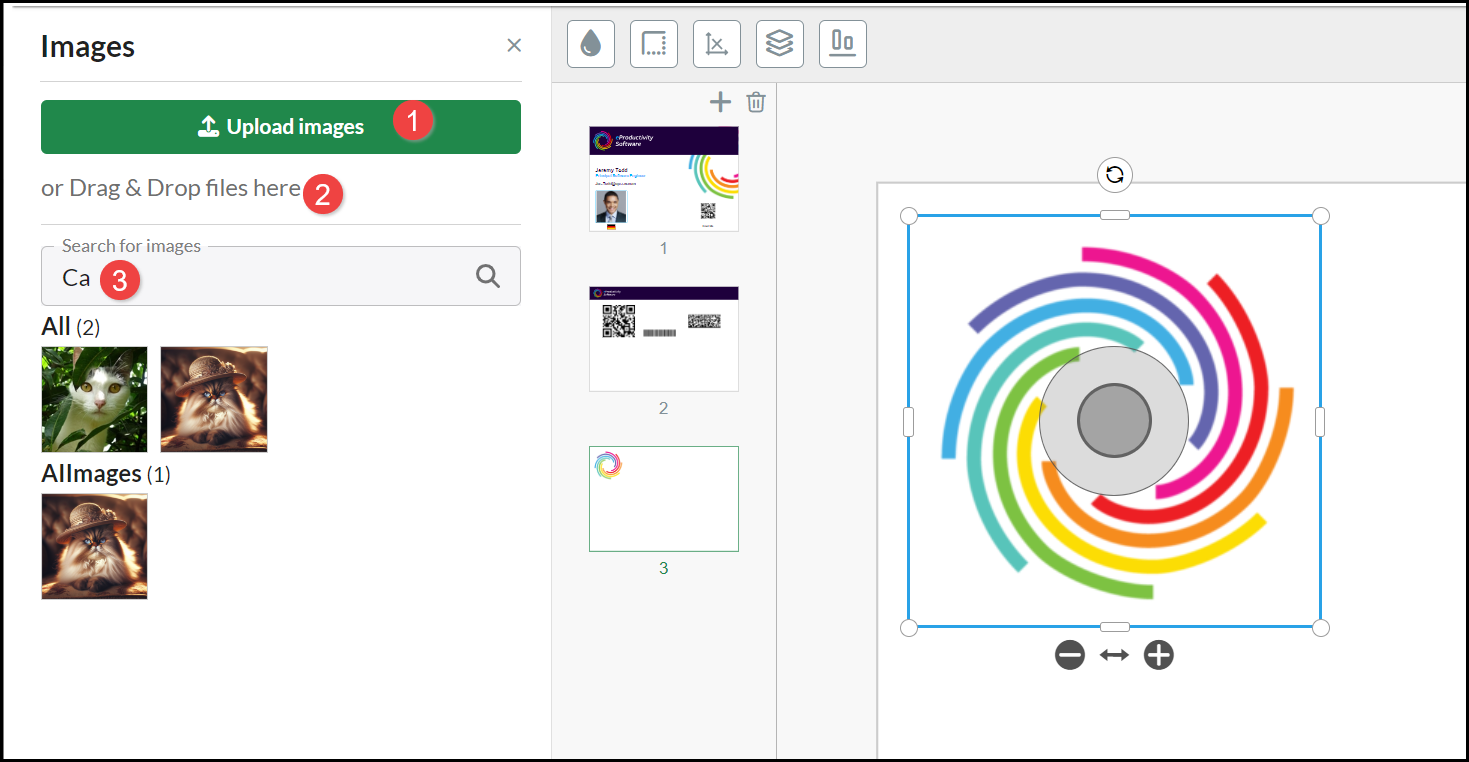
- Upload an Image from your device.
- Drag and Drop an image from your device.
- Search for an image from a catalog of images.
- Barcodes: QR Codes can be displayed and updated when webpage, email addresses or social media references are entered to provide quick links when scanned by a device's camera. Different types of Barcode can be used, for example, for product labels or mail franking.
- Menus: Users can select from a set of fixed options to display text, images or modify properties of a product.
Required fields are marked with an asterisk and must contain data:
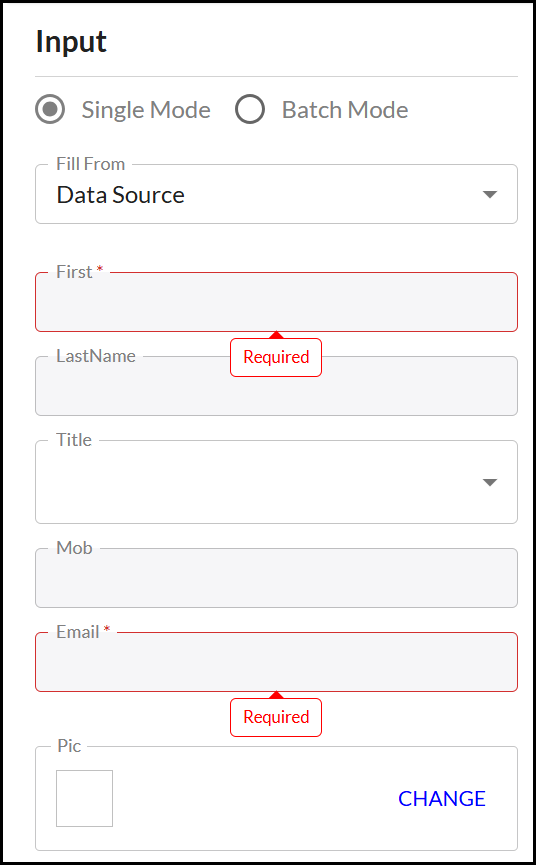
If non-compulsory fields are left empty, they are left blank on the final product.
Tip: If the product includes more than one page, make sure you Personalize and Preview the Input available for each page.
Personalizing Image Options
When you personalize images, you can select to:
- Upload images from your device. When you select an image it is uploaded into the All Images category of images.
- You can Drag & Drop an image to be uploaded into the All Images category of images.
- You can scroll the image library, using either All or within specific named Categories of images. Select VIEW MORE to see additional images within a Category. You can Search for images by entering part of an image name or a term that might identify suitable images.
Note: When you Upload or Drag & Drop images, they are only available for you to select when purchasing that particular product. No other people purchasing the same or other products have access to your images and you will not have future access to those images when creating further product personalizations.
If you upload and use an image that has a low resolution it impacts the print quality, a Warning (exclamation mark) is displayed on the image, select the image on the canvas to view more details about the warning:
- Red: very low image quality.
- Amber: low image quality.
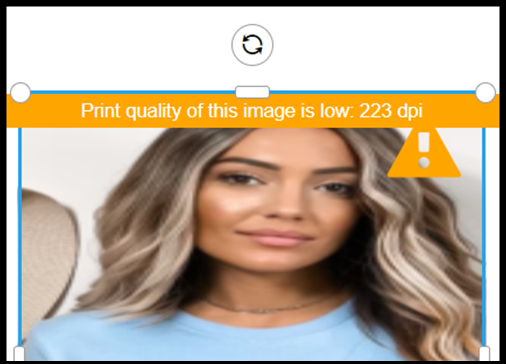
If a Warning is displayed, you should create and upload a higher resolution version on the image before finalizing the product purchase.
Some products may have option Menus where you can select which type of Input to include:
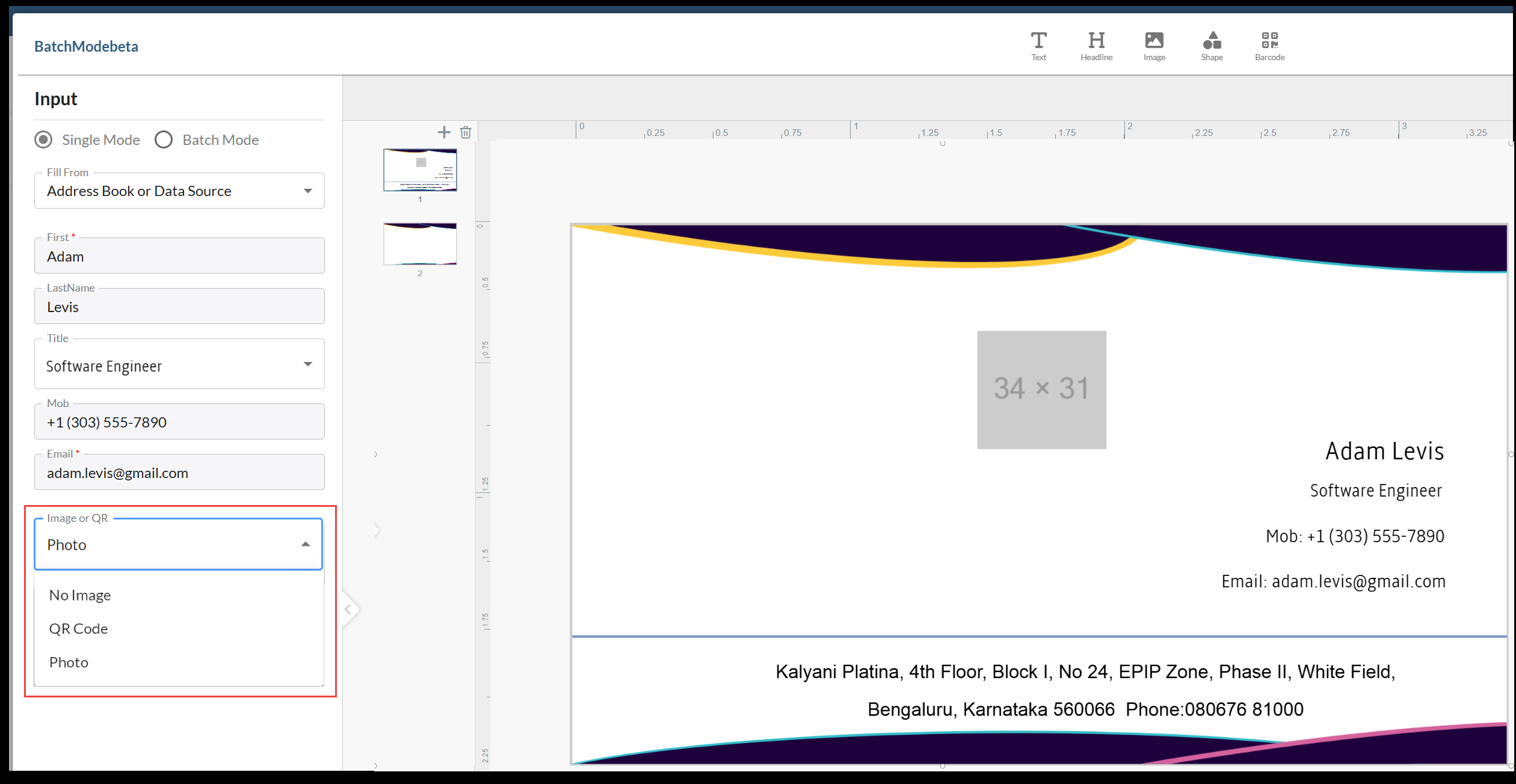
SmartCanvas products can be personalized in either Single Mode or Batch Mode. Both options may be available depending on the product.
Single Mode
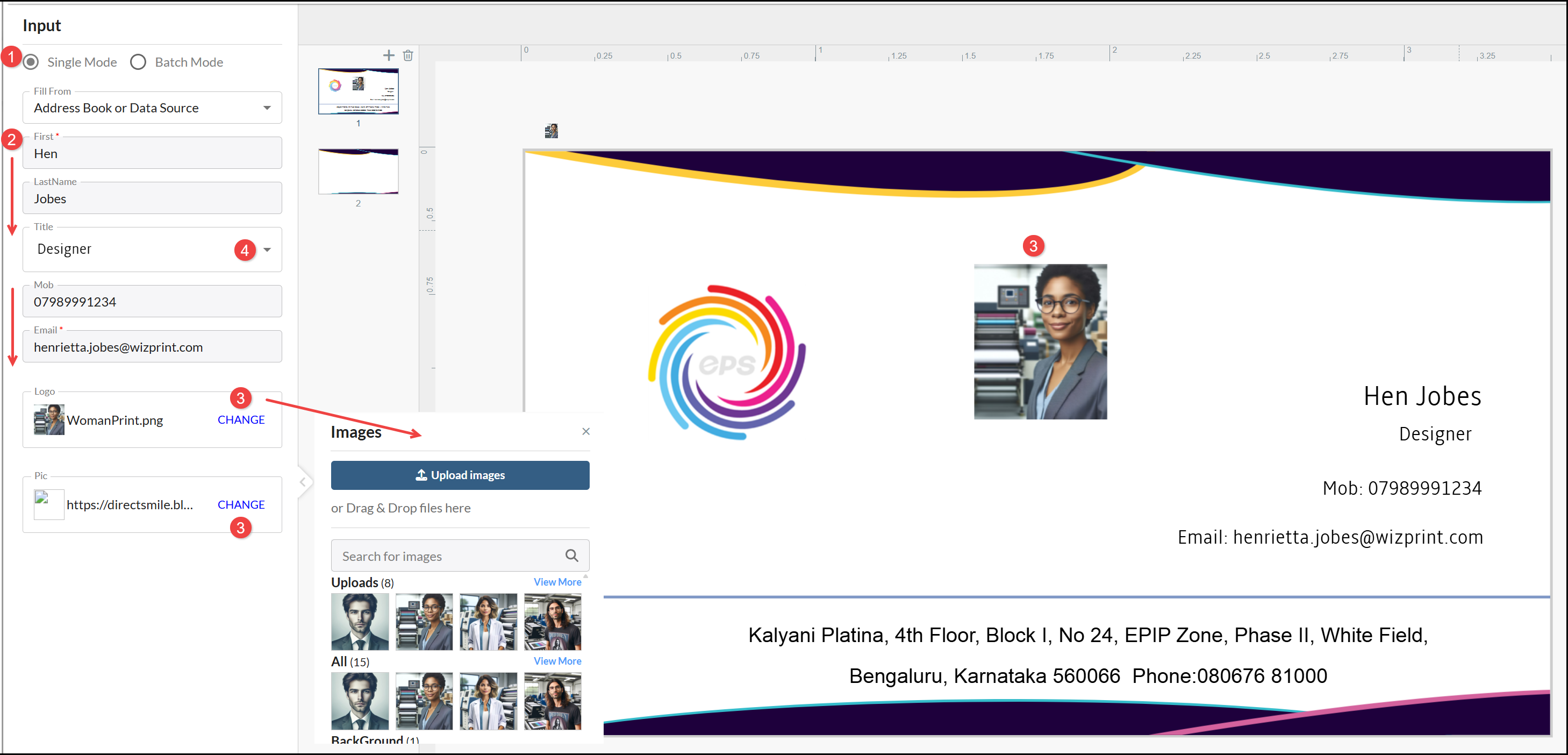
To enter the Input details for a single product personalization:
- Select Single Mode.
- Enter any Content values you want to include.
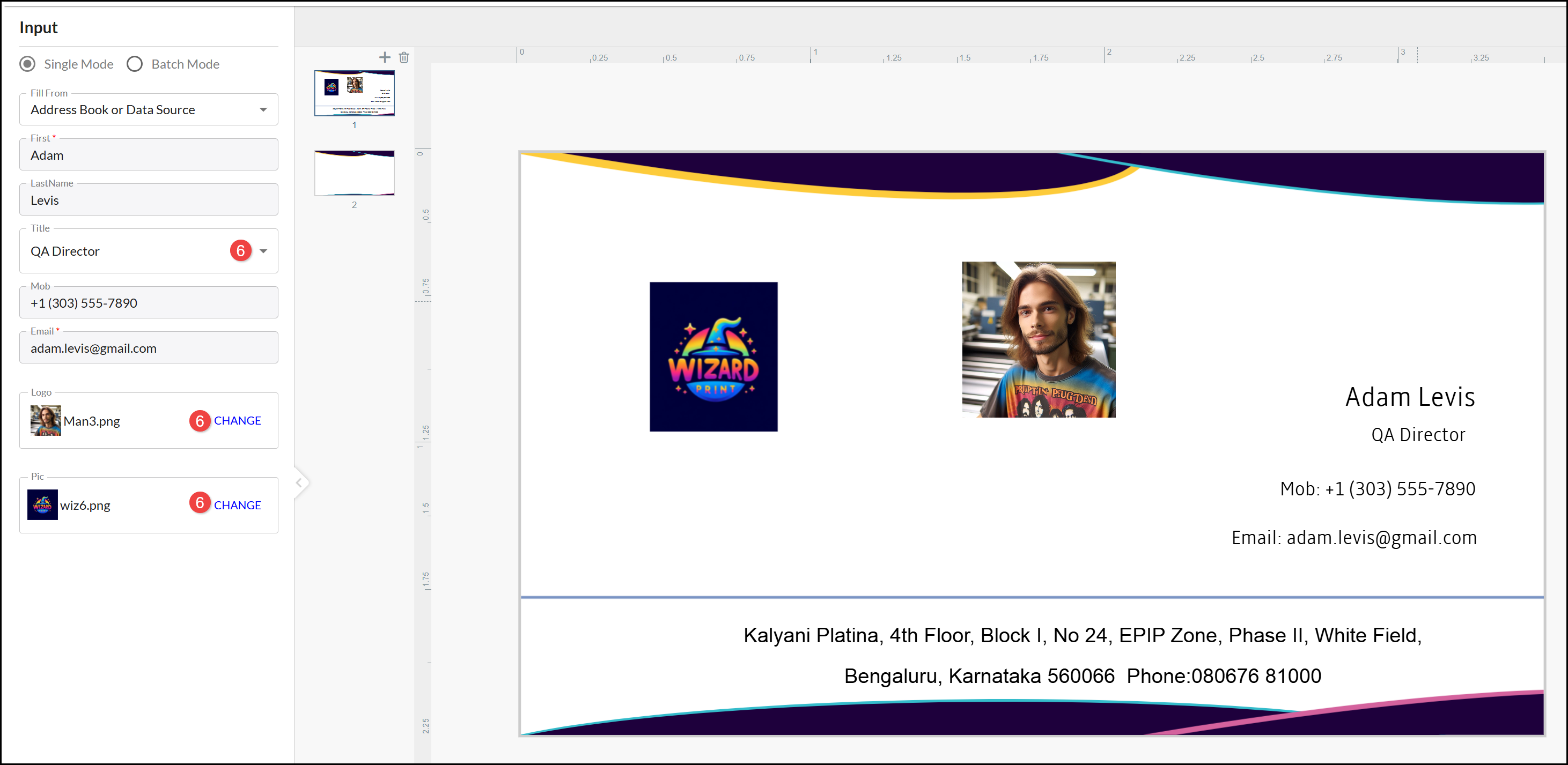
- If the design includes one or more images, select CHANGE and Upload or Drag & Drop the file to include it. You may get a Warning if an image file does not meet the defined resolution recommendations for the design.
- Select any Options available.
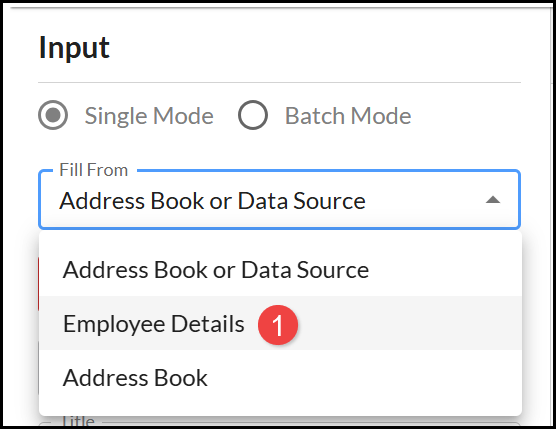
You can also use an Address Book or Data Source to select a record to use in Single Mode:
- From the Fill From menu select an Address Book or Data Source option (only pre-loaded Data Sources are displayed in Single Mode).
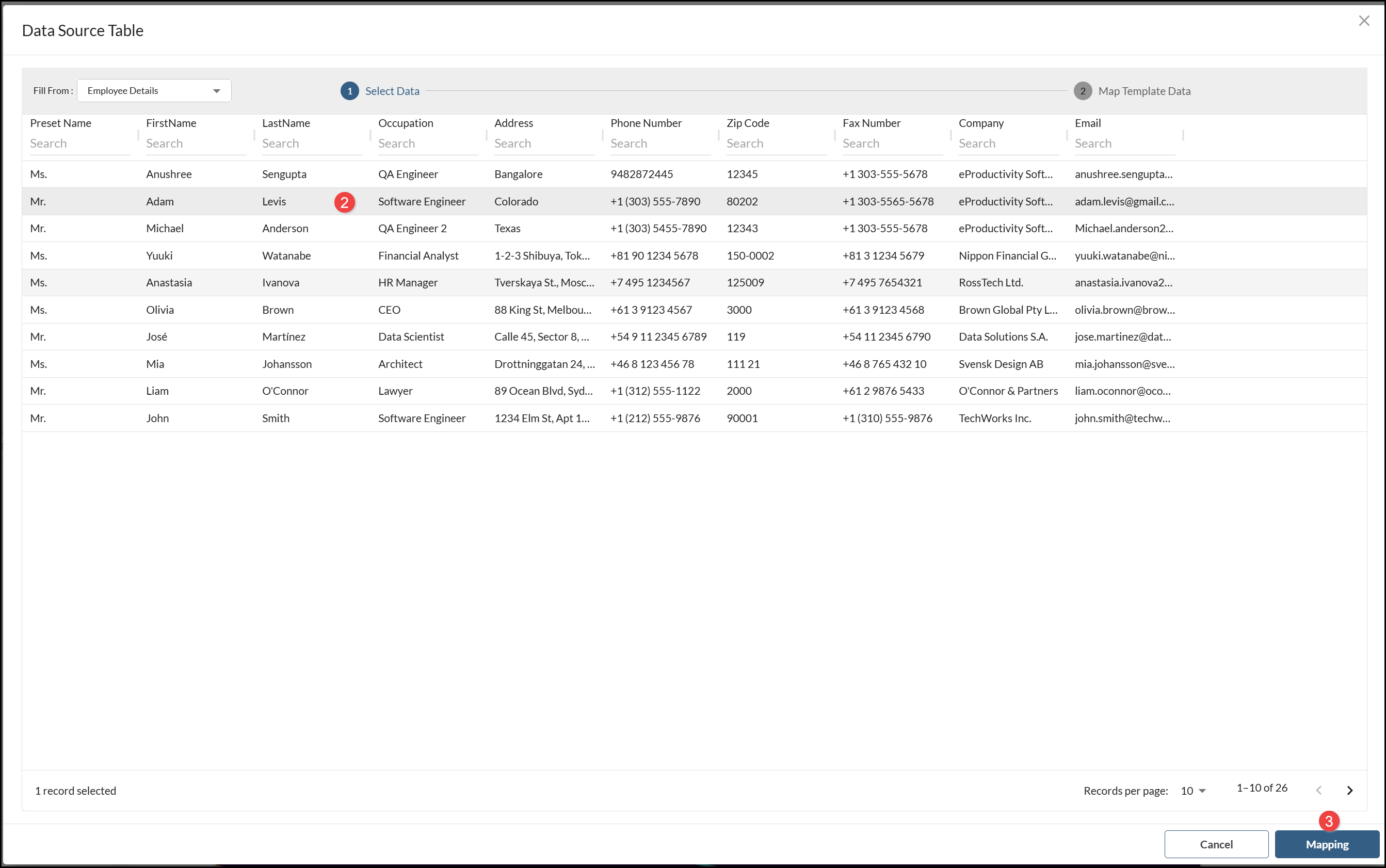
- Select the Record you do want to use in the product.
- Select Mapping.
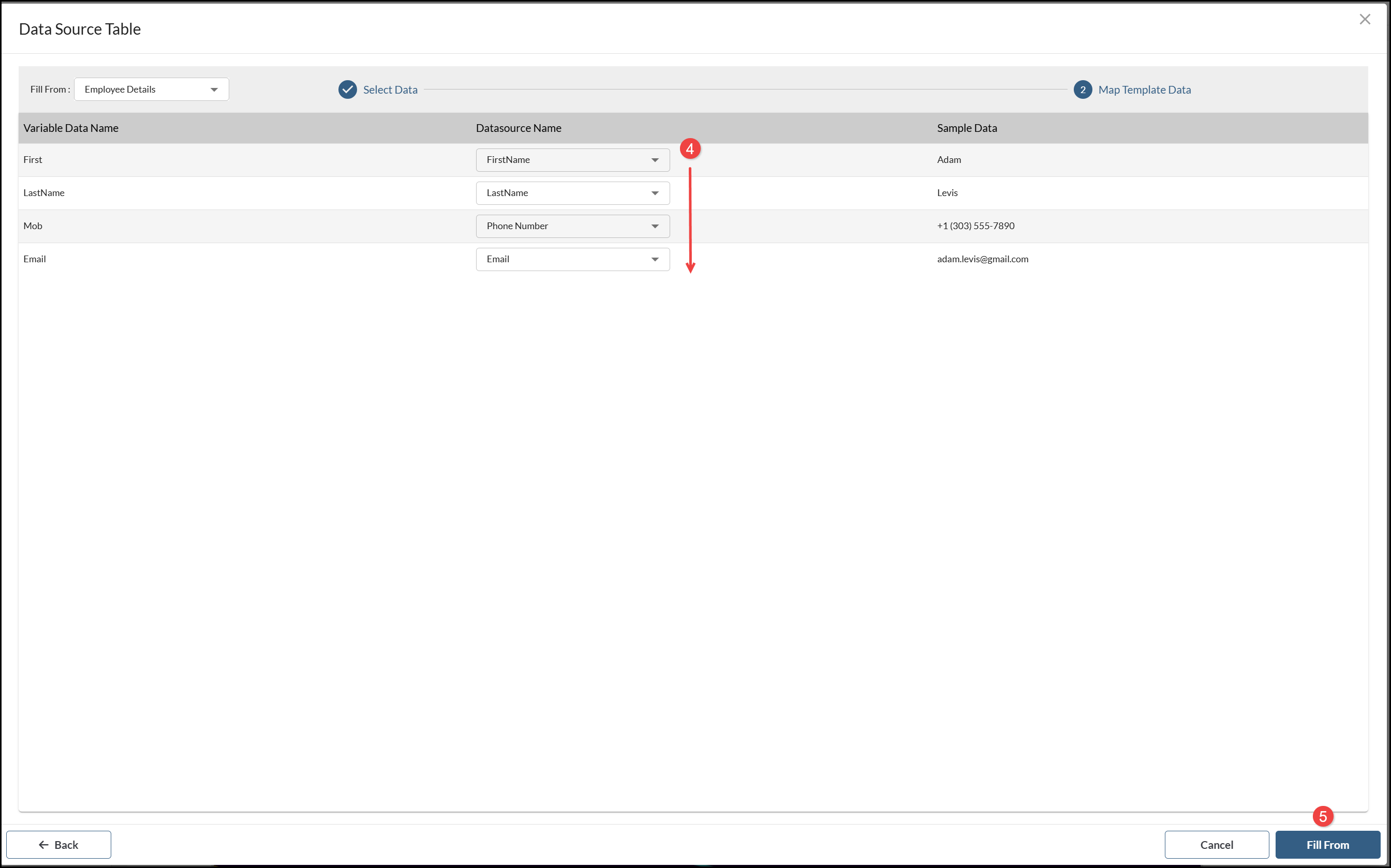
- Select the fields from the Datasource Name menu which Map to each of the Variable Data Name fields. The Sample Data displays the value from the selected record.
- Choose Fill From.
- Complete any Variable Data that could not be mapped from the Data Source file.
Batch Mode
Batch Mode is used to create multiple versions of a product for different data sets. You can do this by:
- Selecting records from an existing Data Source.
- Filtering records from your Address Book.
- Selecting Upload Data Source to upload a new file.
Note: To include Image files in your Upload, reference them by a valid URL.
Loaded Data Source
To use a pre-loaded Data Source, select Batch Mode and:
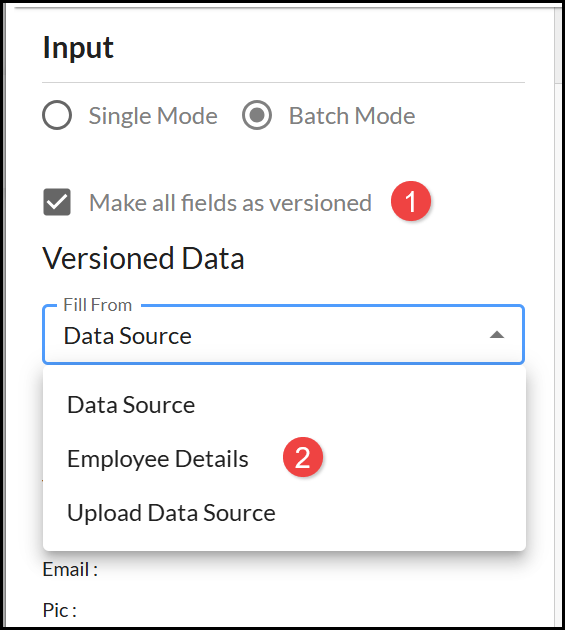
- Unless Versioned Data is already displayed as a default for the design template, select Make all fields as versioned.
- Select a pre-loaded Data Source from the Fill From menu.
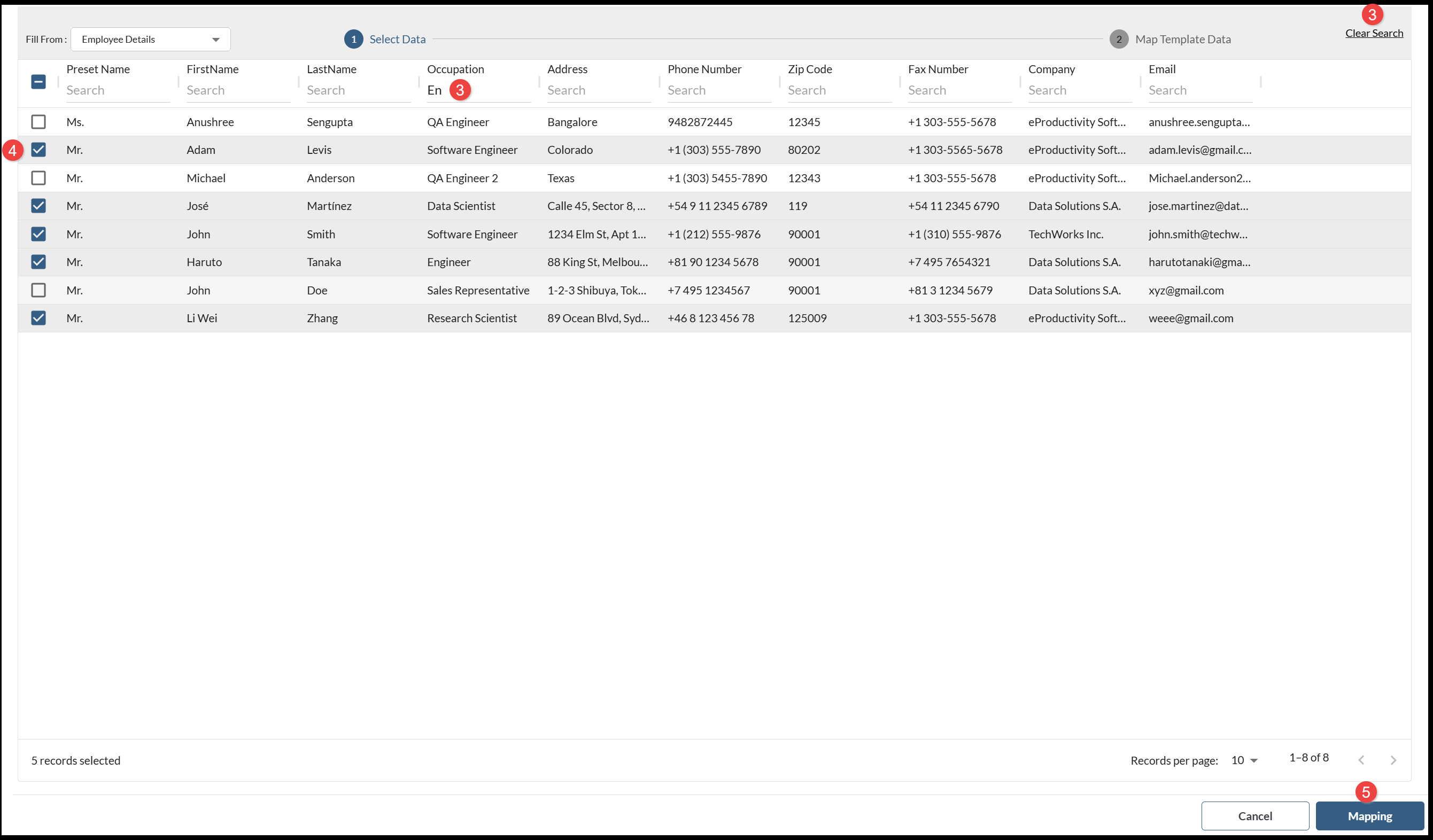
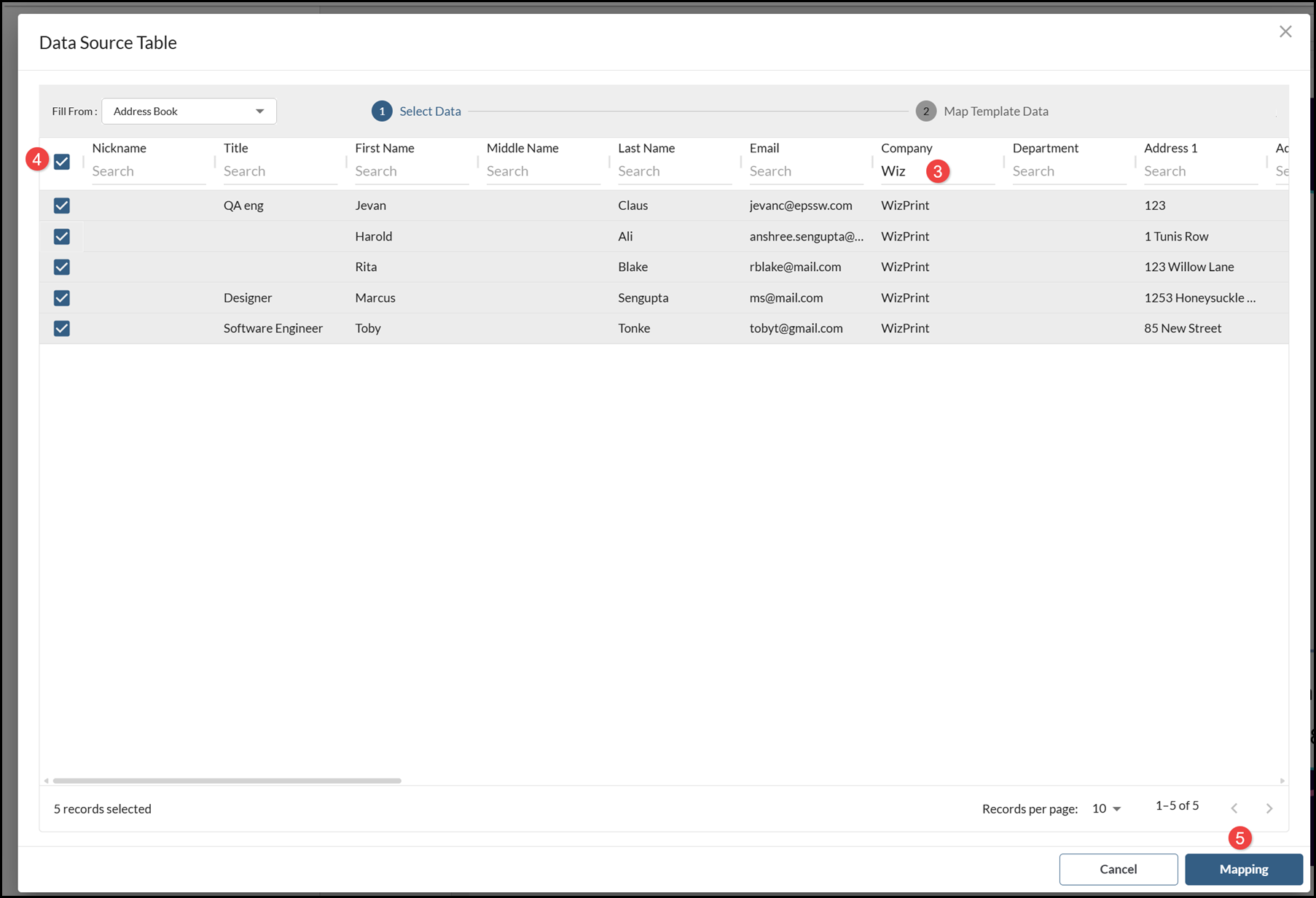
- You can filter the records to include by adding Search Terms under the Field Names. Select Clear Search to view all records again.
- You can select individual Records to include in the product.
- When you have selected the records you want to include, choose Mapping.
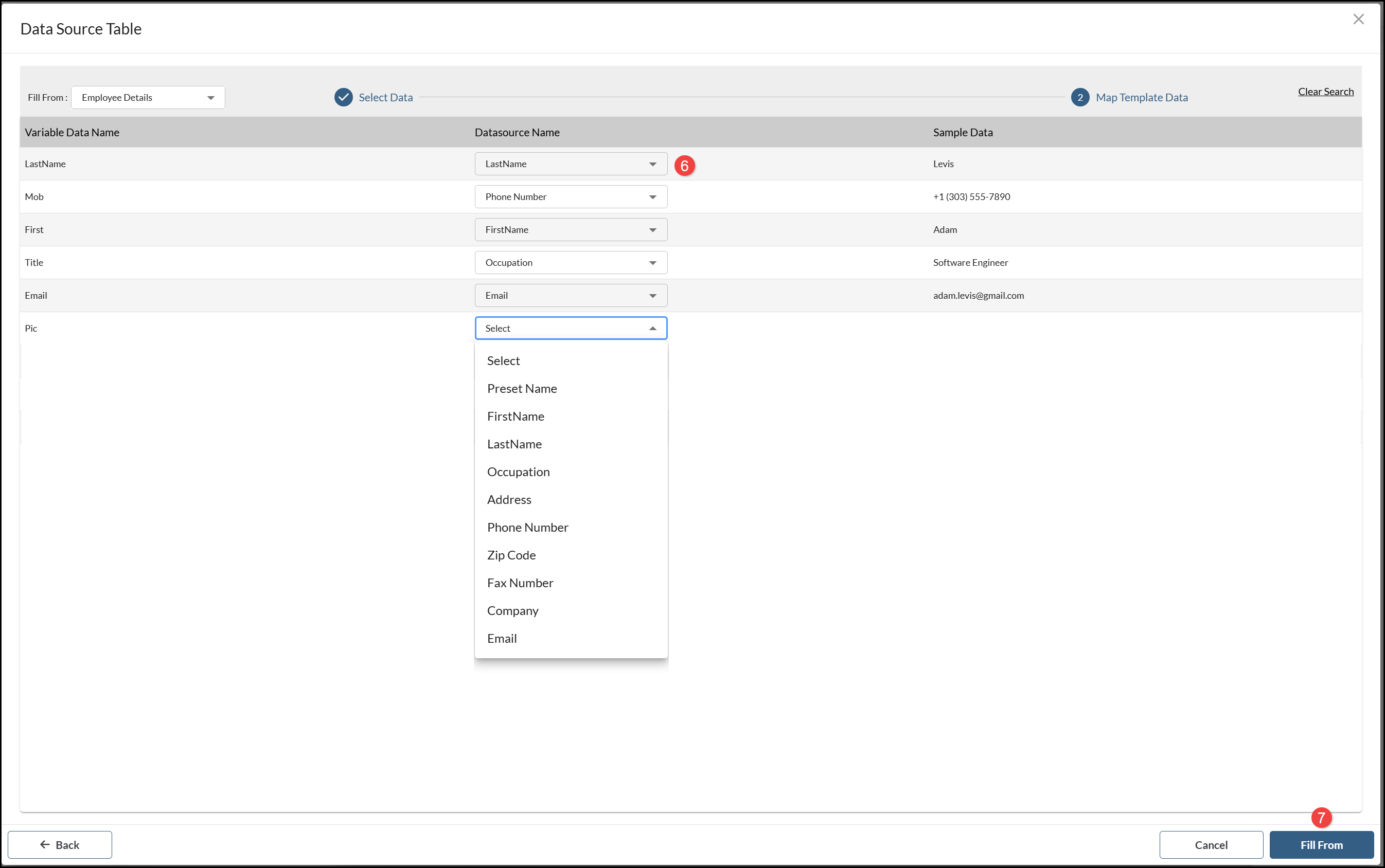
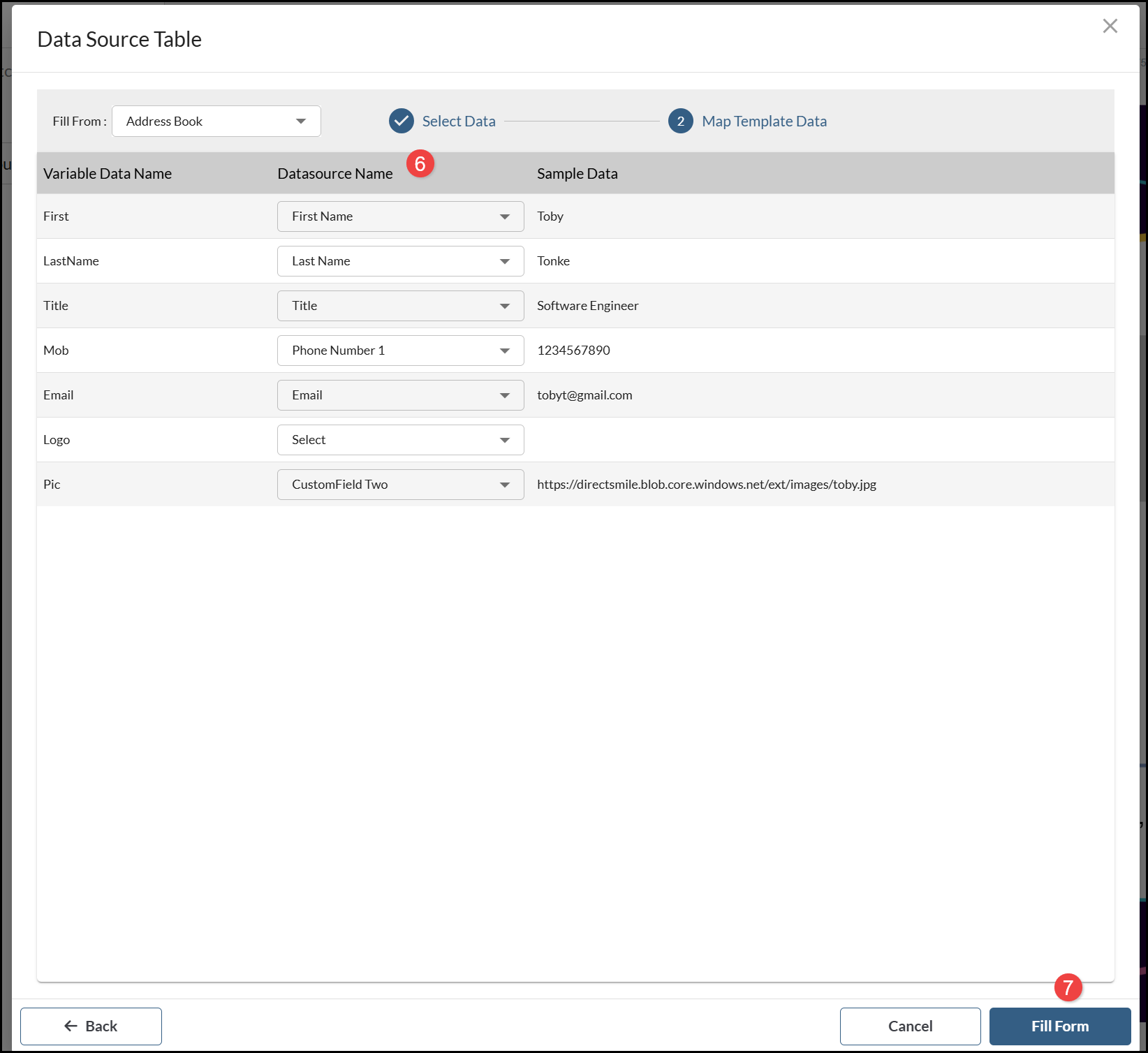
- Select the fields from the Datasource Name menu which Map to each of the Variable Data Name fields. The Sample Data displays the value from the selected record. You are only able to map data that is available in the Datasource.
- Choose Fill From.
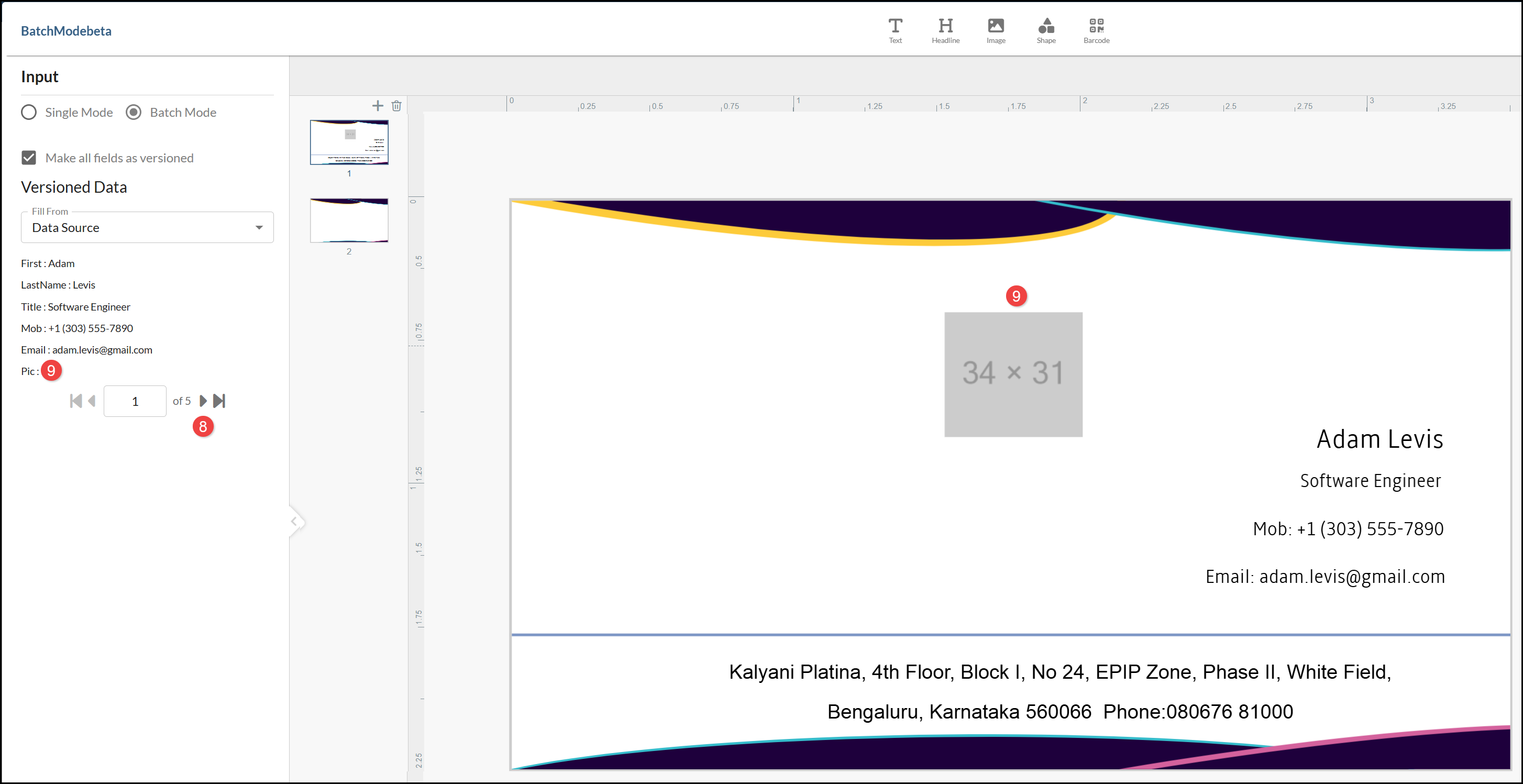
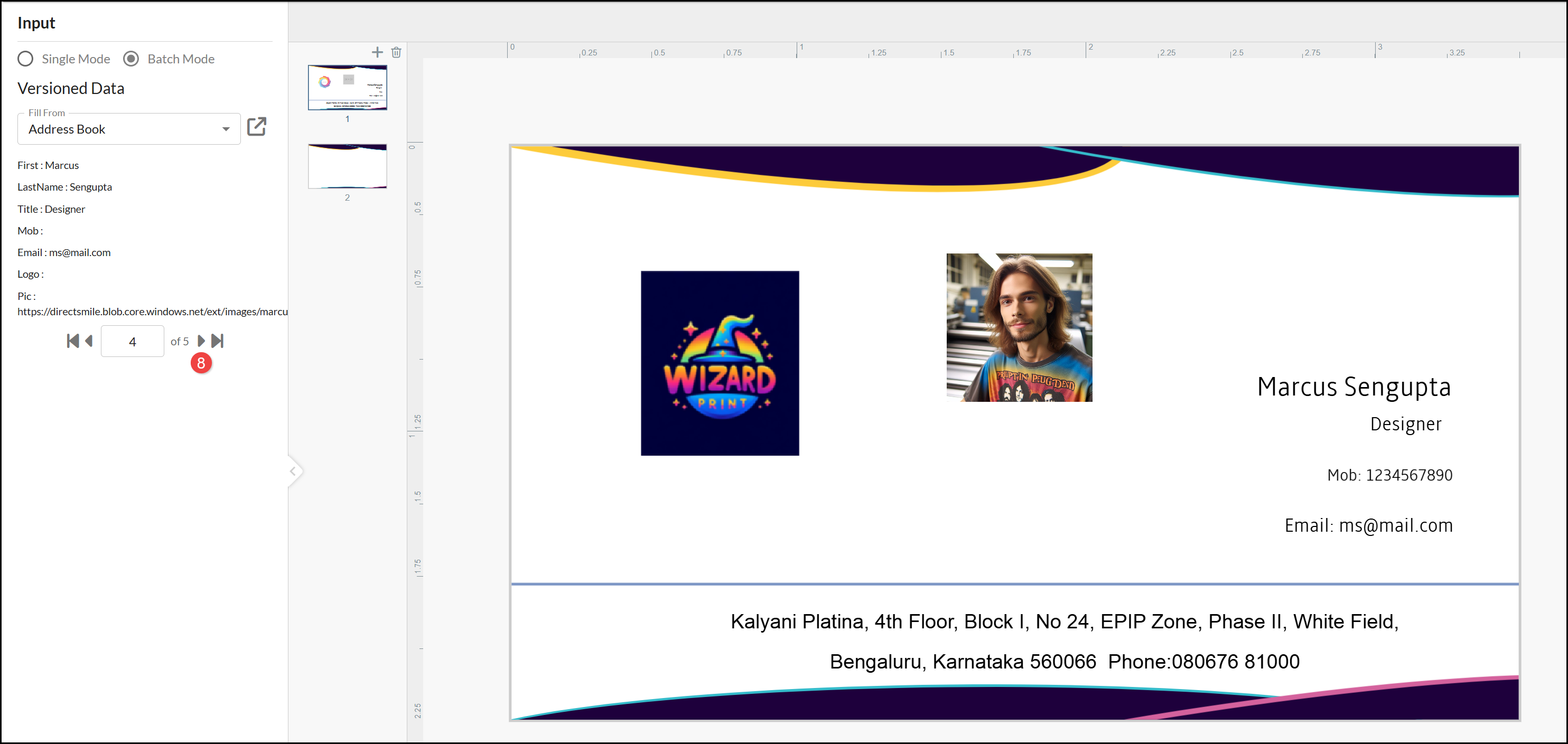
- Step through the records to view the final designs.
- Any fields which are not Mapped are left Blank in the final product.
Upload Data Source
Products may also include an option to upload a Data Source. Select Batch Mode and:
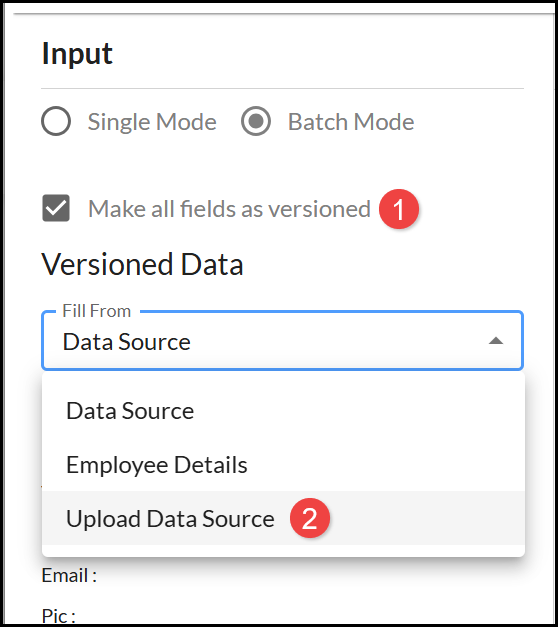
- Unless Versioned Data is already displayed as a default for the design template, select Make all fields as versioned.
- Select Upload Data Source.
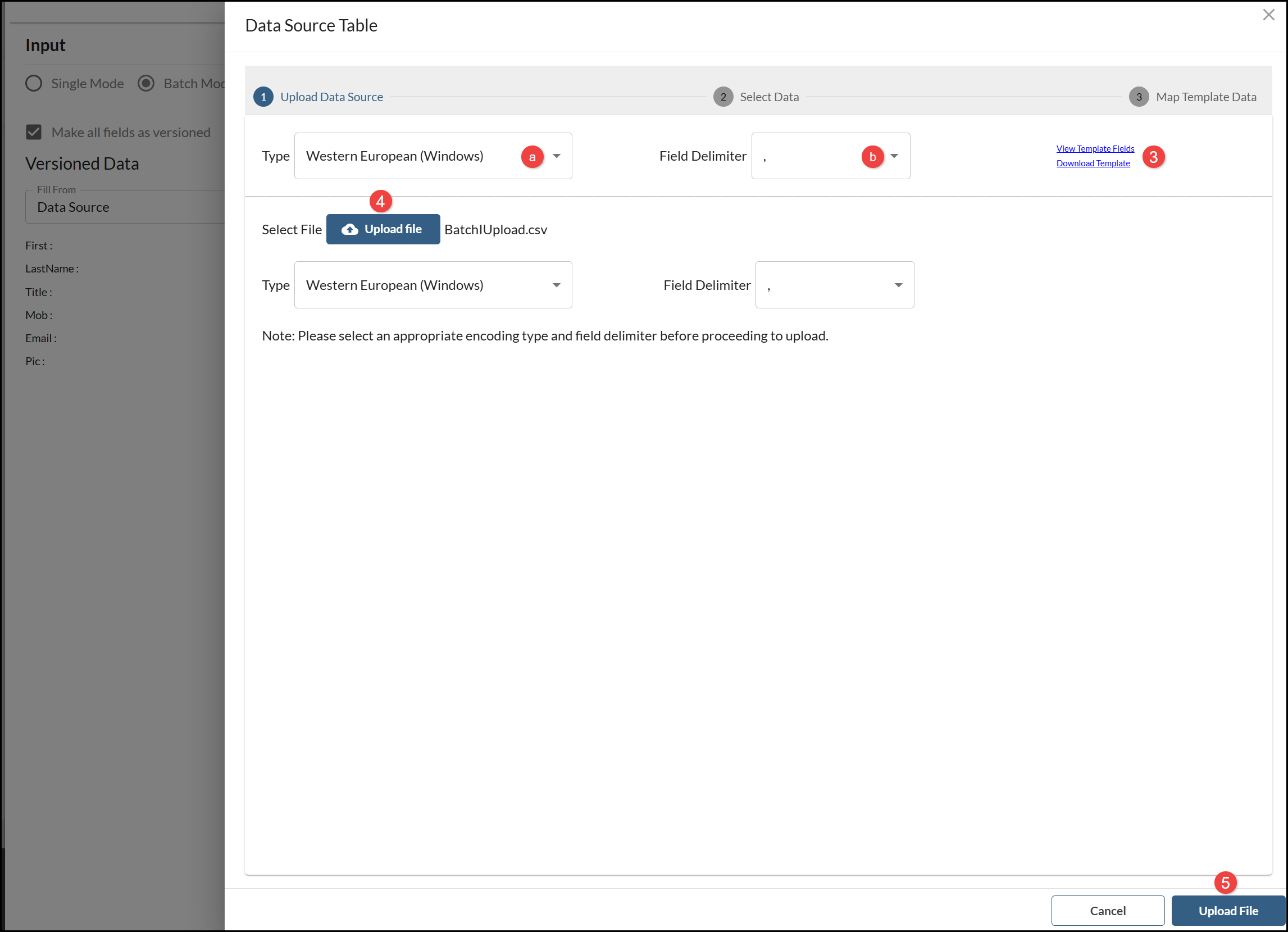
- If you have not yet generated the Data Source table, you have the option to View Template Fields and Download Template to generate a file. If you need to Download Template, select the:
- Type of file, for example, a Windows or UTF (Unicode) format.
- Field Delimiter character to use in the file, for example, Comma or Tab.
- Select the Upload file button to select the Data Source file.
- Select Upload File.
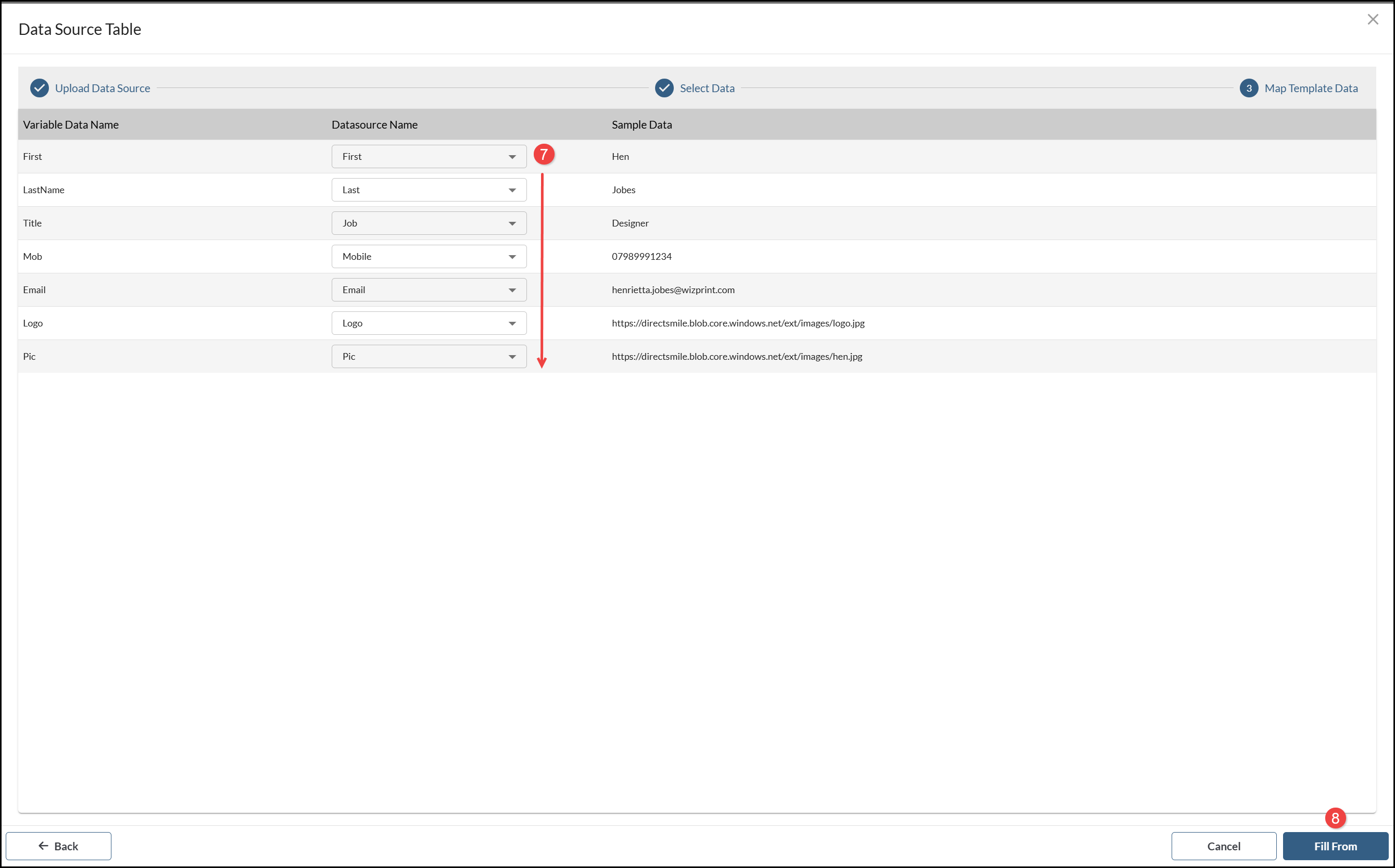
- Select the fields from the Datasource Name menu which Map to each of the Variable Data Name fields. The Sample Data displays the value from the selected record. You are only able to map data that is available in the Datasource.
- Select Fill From.
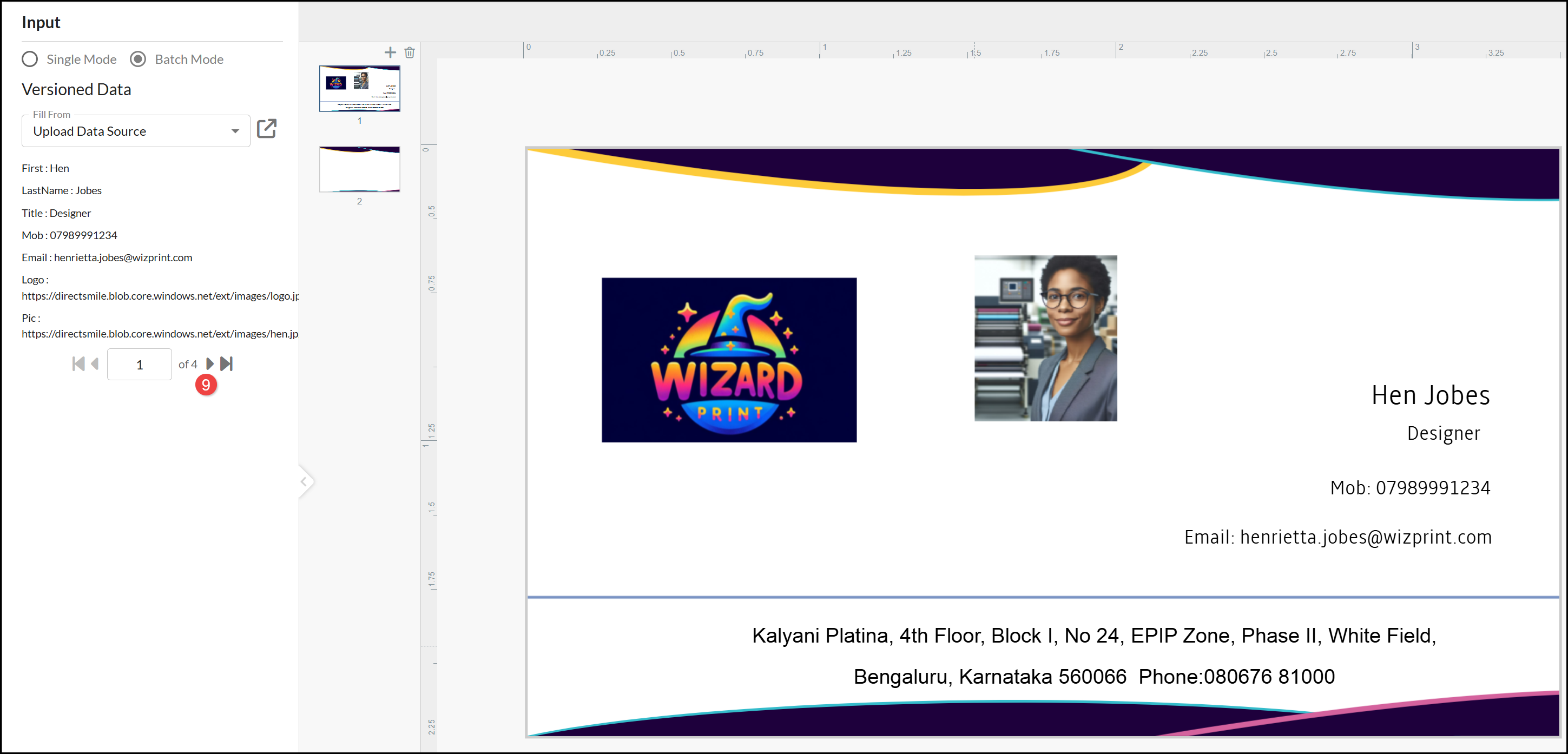
- Step through the records to view the final products.
Address Book
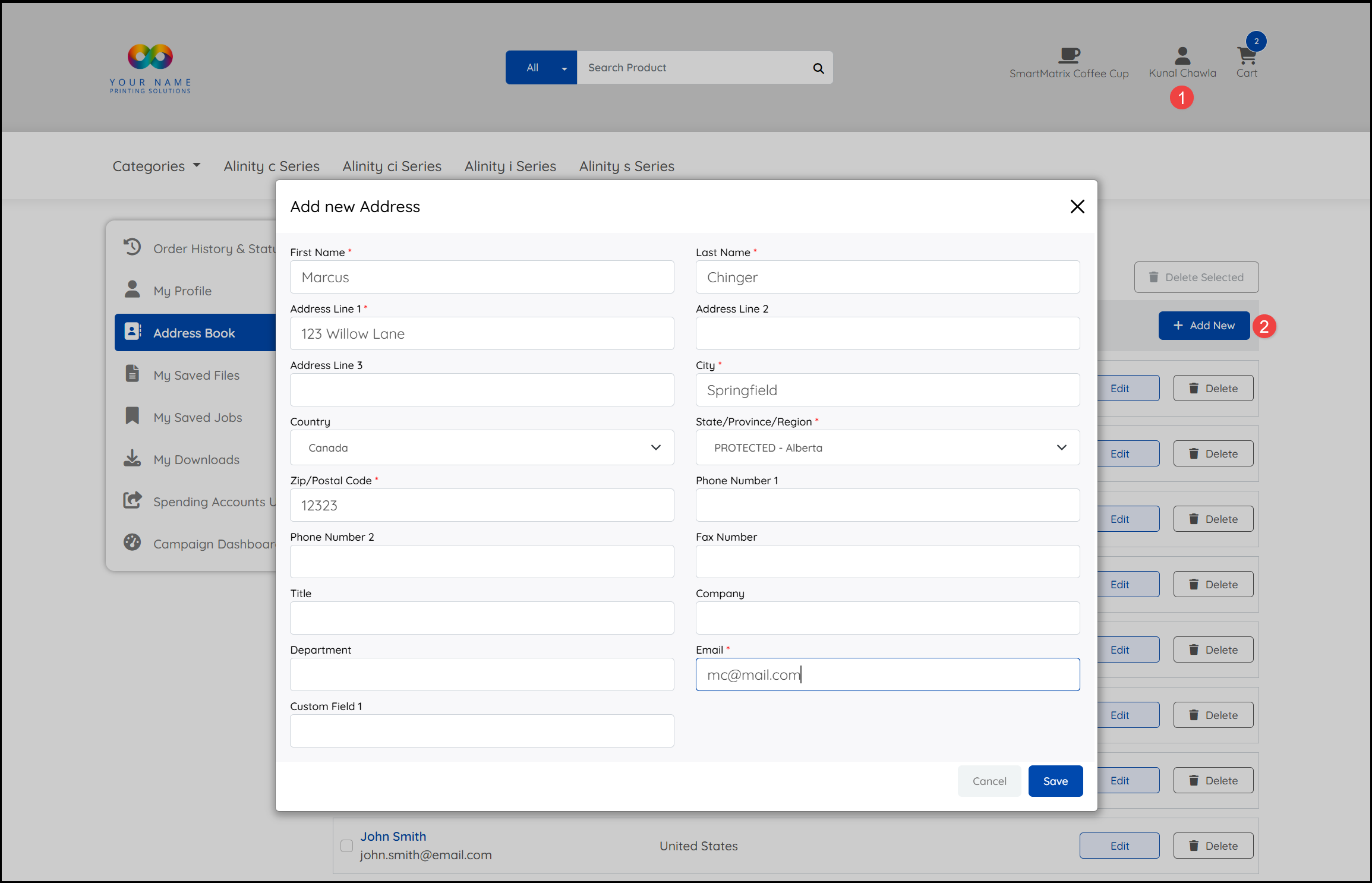
Products may also include an option to populate a product using your Address Book. To add entries to your Address Book, select your Account icon and:
- Choose the Address Book option.
- Select Add New, enter the contact details and Save.
To use an Address Book select Batch Mode and:
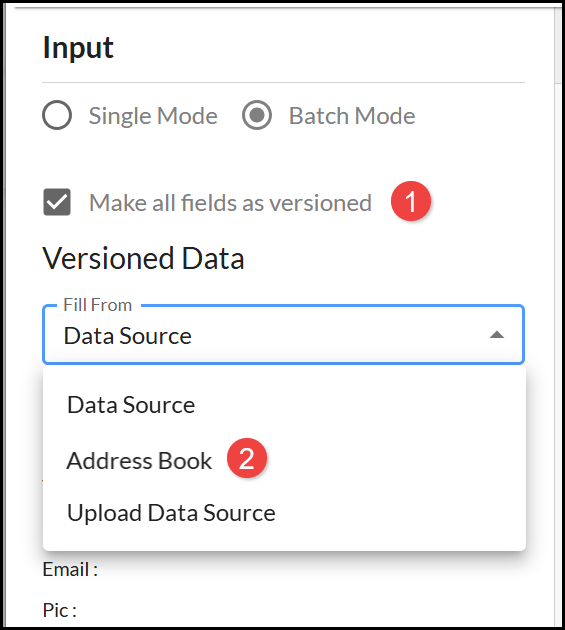
- Unless Versioned Data is already displayed as a default for the design template, select Make all fields as versioned.
- Select Address Book.
- You can filter the records to include by adding Search Terms under the Field Names.
- You can select individual Records to include in the product or use the top checkbox to Select All displayed.
- When you have selected the records you want to include, choose Mapping.
- Select the fields from the Datasource Name menu which Map to each of the Variable Data Name fields. The Sample Data displays the value from the selected record. You are only able to map data that is available in the Datasource.
- Select Fill From.
- Step through the records to view the final products.
See also: